
When your printer faces Wi-Fi outages, start by ensuring it’s connected to the same 2.4GHz network as your devices, since printers prefer that band for stability. Turn off your printer, router, and computer, then unplug the printer for at least 10 seconds before restarting everything. This simple routine clears glitches and resets connections. Following these steps regularly can prevent future issues—continue with this guide to learn more effective solutions.
Key Takeaways
- Ensure printer and device are connected to the same 2.4GHz Wi-Fi network, not 5GHz.
- Power cycle all devices: turn off printer, router, and computer, then restart after 30 seconds.
- Reconnect the printer to Wi-Fi using the Wireless Setup Wizard, updating firmware if needed.
- Check for network interference and optimize signal strength by repositioning the printer closer to the router.
- Regularly perform routine restarts during outages to maintain stable Wi-Fi connections and prevent disruptions.
Understanding Common Causes of Wi-Fi Disconnections for Printers
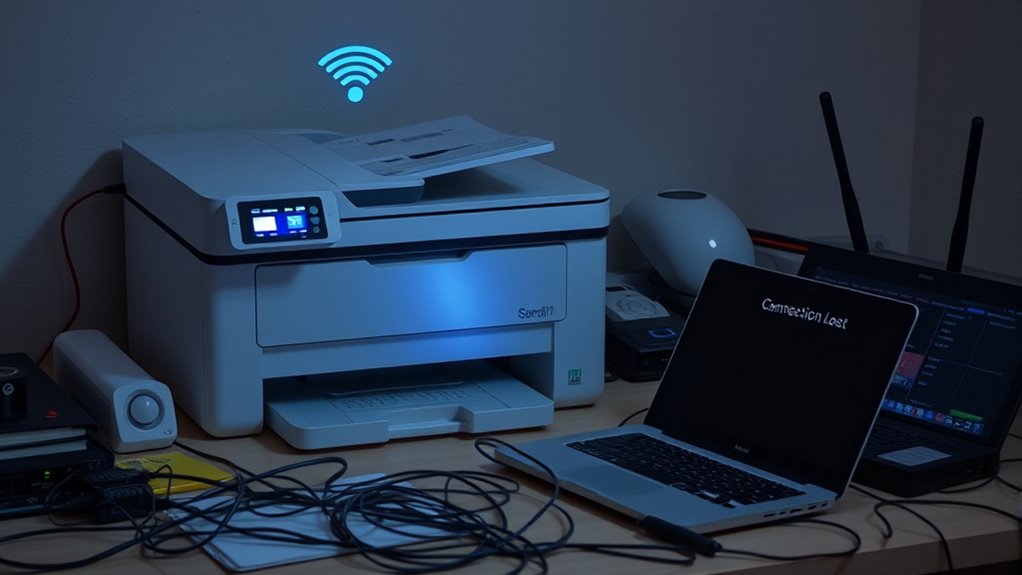
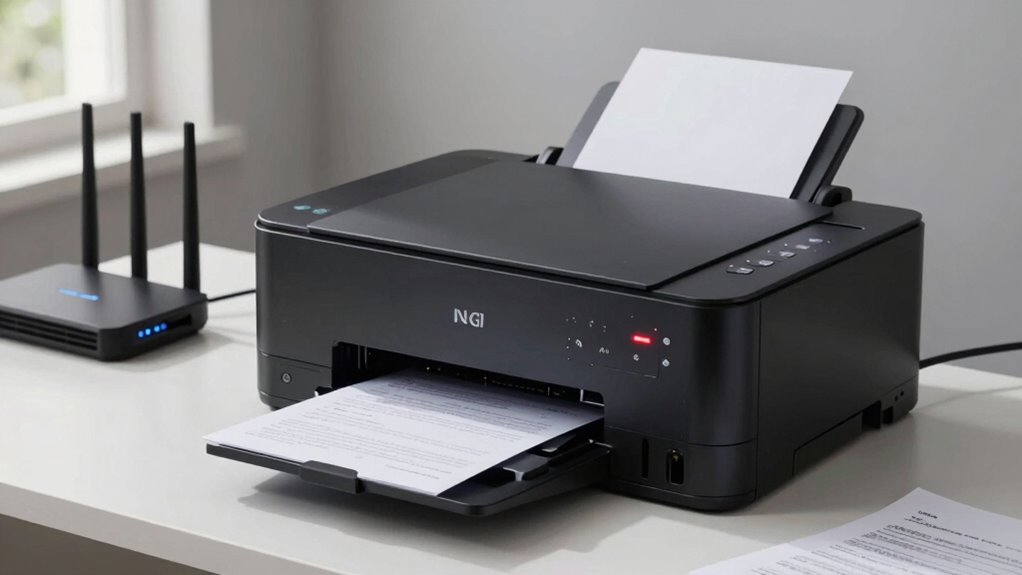
Wi-Fi disconnections for printers often happen due to a combination of network and device issues. One common cause is mismatched Wi-Fi networks; if your printer and computer aren’t on the same network, they can’t communicate. Many printers only work reliably on the 2.4GHz band, so connecting to a 5GHz network can cause drops. Signal strength plays a big role—if your printer is far from the router or there’s interference, connection issues increase. Outdated firmware or device drivers can also disrupt connectivity, as they may contain bugs or incompatibilities. Additionally, network settings like MAC filtering or improper router configurations can block the printer. Understanding these causes helps you troubleshoot effectively and maintain a stable Wi-Fi connection for your printer. Ensuring your printer uses the correct wireless band can prevent many common connectivity problems. Regularly updating your device firmware can also help resolve bugs that cause disconnections. Being aware of network interference sources can further improve connection stability and reduce outages. Moreover, monitoring your network’s security settings can prevent unauthorized devices from disrupting your connection.
Preparing Your Devices for a Successful Restart

Before restarting your devices, make sure to power them down properly. Unplug all cables and wait at least 10 seconds to allow residual power to dissipate. This simple step helps prevent errors and guarantees a smoother reset process. Additionally, device cooling can improve the efficiency of rebooting by preventing overheating during startup. Ensuring proper battery management during shutdown can also extend your device’s lifespan and improve overall reliability. Proper shutdown procedures can also help preserve the integrity of electronic components, reducing the risk of hardware failure over time, especially when traveling with electronics or in variable environments. Being aware of crypto market trends can also be beneficial if you’re managing digital assets during device restarts, as market activity may influence your decision to delay or proceed with rebooting.
Power Down Properly
Powering down your devices properly is essential for a successful restart. First, turn off your printer, router, and computer individually. Wait at least 30 seconds before turning anything back on. This pause allows internal memory to clear and temporary glitches to reset. When turning off the printer, disconnect the power cord if possible, then wait 10 seconds before reconnecting. For the router and computer, shut them down completely—avoid sleep mode. This ensures all network connections are fully reset. Proper shutdown prevents residual data or errors from lingering, which could interfere with the restart process. Taking these steps helps ensure your devices are in a clean state, reducing the risk of recurring issues and setting the stage for a smooth, effective reboot. Additionally, performing a Proper shutdown minimizes risks of hardware or software problems that might affect performance later. Being mindful of power management practices can further extend device lifespan and reliability. Incorporating electric device maintenance routines can also help prevent unexpected outages and keep your devices functioning optimally.
Unplug All Devices
Unplugging all devices guarantees a complete reset of your network setup, clearing out any lingering glitches that might cause connectivity issues. This step ensures that your printer, router, and computer fully disconnect, preventing residual data from interfering with the restart process. To do this effectively:
- Disconnect the printer’s power cord and wait 10 seconds before plugging it back in.
- Turn off your router and computer, then wait at least 30 seconds before powering them back on.
- Ensure all cables are secure and remove any unnecessary devices that could cause interference.
- Vetted cookies help optimize your device’s performance during the reset process. Additionally, understanding how network configurations impact connectivity can save you time during troubleshooting. Recognizing device compatibility issues can also prevent future connection problems. Being aware of firmware updates is essential since outdated software can hinder device communication. Regularly checking for software updates can keep your devices functioning smoothly.
This simple step allows your devices to reset their internal configurations, reducing the chance of persistent connection problems. It’s a quick, essential move before proceeding with further troubleshooting.
Wait Before Restart
Taking a moment to wait before restarting your devices guarantees they have enough time to fully shut down and release any residual data or processes. This pause ensures that no temporary files or active connections interfere with the restart, helping prevent recurring issues. When you power off your printer, router, or computer, wait at least 30 seconds before turning them back on. For the printer, disconnect the power cord and wait 10 seconds before reconnecting. This brief delay allows internal memory and network components to reset properly. Rushing into a restart can leave lingering glitches or corrupt settings, prolonging connectivity problems. Practicing this simple step daily during outages considerably improves your chances of a smooth, effective reboot, reducing the likelihood of needing further troubleshooting. Proper restart procedures are a simple yet effective way to maintain better device performance and indoor environment stability. Additionally, ensuring a clean shutdown process helps prevent potential hardware issues caused by abrupt power loss. Taking these precautions can also help prevent recurring connectivity issues and improve overall device longevity.
Ensuring Your Printer Is on the Correct Wi-Fi Network
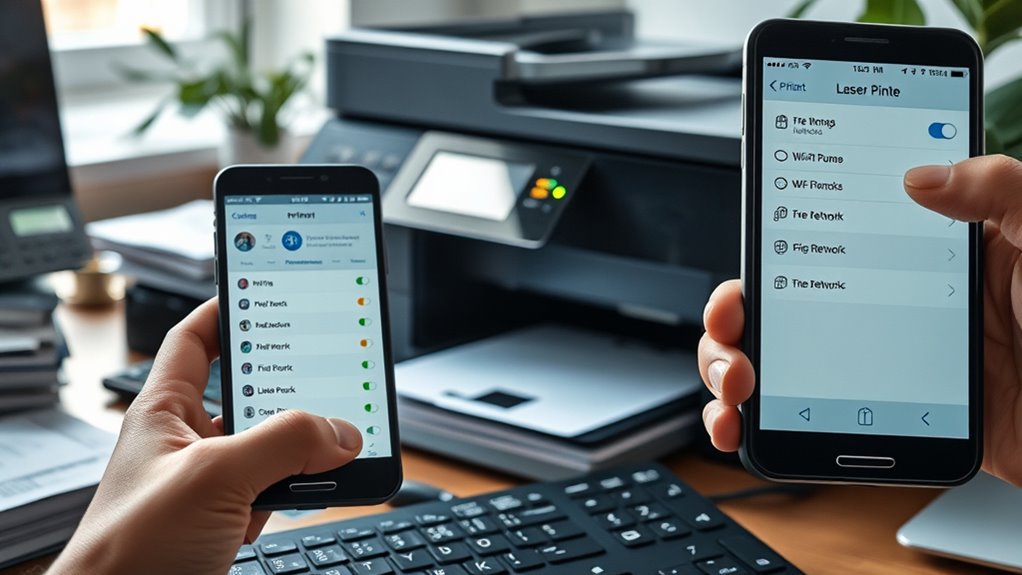
First, make sure your printer is connected to the same Wi-Fi network as your device. Check the network name (SSID) on your printer’s control panel to confirm it matches your router’s SSID. Also, switch to the 2.4GHz band, since most printers don’t reliably connect to 5GHz networks. Additionally, verify that your Wi-Fi network has sufficient signal strength to ensure a stable connection.
Confirm Network Connection
To make sure your printer stays connected, verify that it’s on the correct Wi-Fi network. This step is vital because connecting to the wrong network can cause frequent drops. Start by checking the printer control panel for the network status indicator. Next, guarantee both your device and printer are on the same Wi-Fi band—preferably 2.4GHz, not 5GHz, for better compatibility. Finally, if auto-connect chooses the wrong network, manually select the correct SSID. Doing this guarantees your printer communicates with the right network, reducing connection failures. Confirming these details prevents unnecessary troubleshooting and ensures smooth printing during outages. Keep in mind, a simple network mismatch causes a significant portion of Wi-Fi issues, so double-check your settings regularly.
Match SSID Settings
Ensuring your printer is connected to the correct Wi-Fi network is essential for reliable printing. First, verify that both your printer and device are on the same SSID, not on a guest or different network. Check your printer’s control panel for the network status indicator; it should display the correct network name. Avoid connecting to 5GHz bands, as printers typically require 2.4GHz for stability. If your device auto-connects to the wrong SSID, manually select the correct network through the printer’s menu or your device’s Wi-Fi settings. Mismatched SSID settings are responsible for about 40% of connection failures, so confirming the network match is a critical step to restore stable wireless printing. Remember that wireless network compatibility can vary, so ensuring your printer supports the same standards as your router can prevent future issues. Additionally, network security settings such as WPA2 or WPA3 can sometimes interfere with connections, so verifying these settings can help maintain a stable link.
Switch to 2.4GHz Band
Many printers are designed to operate best on the 2.4GHz Wi-Fi band, but they often default to the 5GHz band if available. To verify your printer stays connected, you need to confirm it’s on the correct network. Here are three key steps:
- Check your printer’s network settings—look for the current Wi-Fi band and SSID.
- Switch manually if your printer auto-connects to the 5GHz band; select the 2.4GHz SSID.
- Disable the 5GHz network temporarily on your router to force the printer onto the 2.4GHz band.
This simple switch often resolves connection drops and improves stability during Wi-Fi outages, ensuring your printer stays reliably online.
Resetting and Updating Your Printer and Router Settings
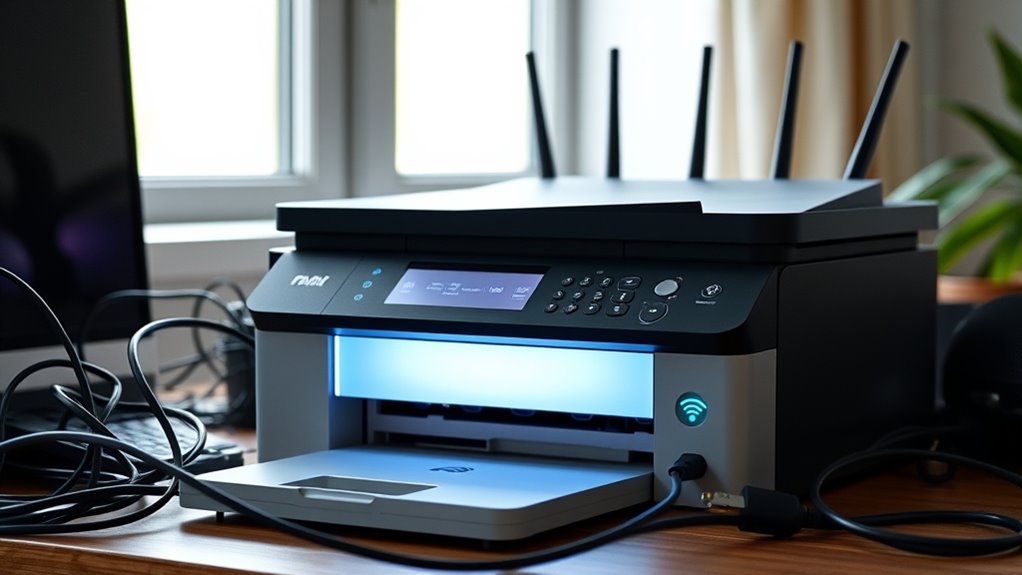
When your printer experiences Wi-Fi outages, resetting and updating both your printer and router settings often provides a quick solution. First, restart all devices by powering off your printer, router, and computer for 30 seconds. Disconnect the printer’s power cord, wait 10 seconds, then reconnect and turn it back on. Verify your printer and computer are connected to the same Wi-Fi network, preferably 2.4GHz, avoiding guest networks. Reset your printer’s network settings through the control panel or button combination, then reconnect using the Wireless Setup Wizard. Update your printer’s firmware and software from the manufacturer’s site, and check for router firmware updates. Reboot your router, reposition the printer closer if needed, and verify stable signal strength. These steps often resolve temporary glitches efficiently.
Troubleshooting Persistent Connection Issues

If your printer continues to lose connection despite resetting and updating your devices, persistent issues may stem from deeper network conflicts or interference. To troubleshoot effectively:
- Verify that both your printer and device are on the same Wi-Fi network, preferably 2.4GHz, not guest or direct networks.
- Check for network congestion or signal interference caused by other devices or appliances nearby.
- Use a wired connection, like USB, to test if the problem is Wi-Fi-specific or hardware-related.
These steps help identify if the issue is due to network conflicts or interference. If you find consistent problems after trying these, it’s time to consider resetting your network settings or consulting your router’s manufacturer for advanced diagnostics.
Implementing the Restart Routine as a Preventative Measure
Regularly restarting your printer, router, and computer can prevent Wi-Fi outages from disrupting your workflow. Power off each device for 30 seconds, disconnect the printer’s power cord for 10 seconds, then reconnect and power everything back on. This routine clears temporary glitches that cause connectivity issues. Doing this daily during outages helps maintain stable connections and reduces the chance of persistent problems. It’s especially effective if you notice frequent drops or delays. Make it a habit to restart devices before troubleshooting further. Confirm that your printer and computer are on the same Wi-Fi network, preferably 2.4GHz, and reset network settings if needed. By establishing this routine, you proactively prevent outages, saving time and minimizing interruptions to your printing tasks.
Frequently Asked Questions
How Often Should I Restart My Devices During Wi-Fi Outages?
You should restart your devices daily during Wi-Fi outages to maintain stability. Power off your printer, router, and computer for at least 30 seconds, then reconnect and turn them back on. This power cycle resolves temporary glitches in about 80% of cases, helping your devices reconnect faster. Repeating this process regularly guarantees smoother operation and reduces prolonged connectivity issues, especially during frequent or extended outages.
Can I Restart Devices Remotely to Fix Connectivity Issues?
Like a captain steering through a storm, you can restart devices remotely to fix connectivity issues. Use your router or device management apps to reboot your printer, router, or computer without leaving your seat. This quick action clears glitches and refreshes connections, much like resetting a compass during rough seas. Keep in mind, remote restarts are effective but may need to be combined with other troubleshooting steps for full stability.
What Signs Indicate a Printer Needs a Network Reset?
You’ll know your printer needs a network reset if it shows persistent connection errors, fails to locate your Wi-Fi network, or keeps disconnecting despite restarting your devices. If the printer’s control panel indicates a network issue or if you can’t print even after troubleshooting, it’s time for a reset. Also, frequent disconnections or slow response from the printer signal that resetting network settings could resolve underlying glitches.
Are There Specific Router Settings That Help Prevent Wi-Fi Drops?
Think of your router as a gatekeeper, and the settings as its rules. To prevent Wi-Fi drops, disable MAC address filtering, ensuring only trusted devices connect smoothly. Set the router to “Auto-Select” for the best frequency or manually choose 2.4GHz to keep your printer happy. Also, enable Quality of Service (QoS) to prioritize printer traffic, creating a steady, dependable connection that keeps your workflow flowing seamlessly.
How Do I Know if My Printer’s Firmware Is Outdated?
You can check if your printer’s firmware is outdated by accessing the printer’s control panel or menu. Look for a firmware or software update option, then select it to see if an update is available. Alternatively, visit the manufacturer’s website, enter your printer model, and compare the latest firmware version listed there with what your printer currently has. Updating firmware keeps your printer running smoothly and prevents connection issues.
Conclusion
By mastering this simple restart routine, you gain control over your printer’s Wi-Fi issues. It’s a quick fix that can save you hours of frustration, yet it’s often overlooked. Think of it as a reset button for peace of mind—avoiding the chaos of ongoing outages. So, next time your printer disconnects, remember: sometimes, the simplest restart is the most powerful solution. Keep this routine handy and stay connected effortlessly.