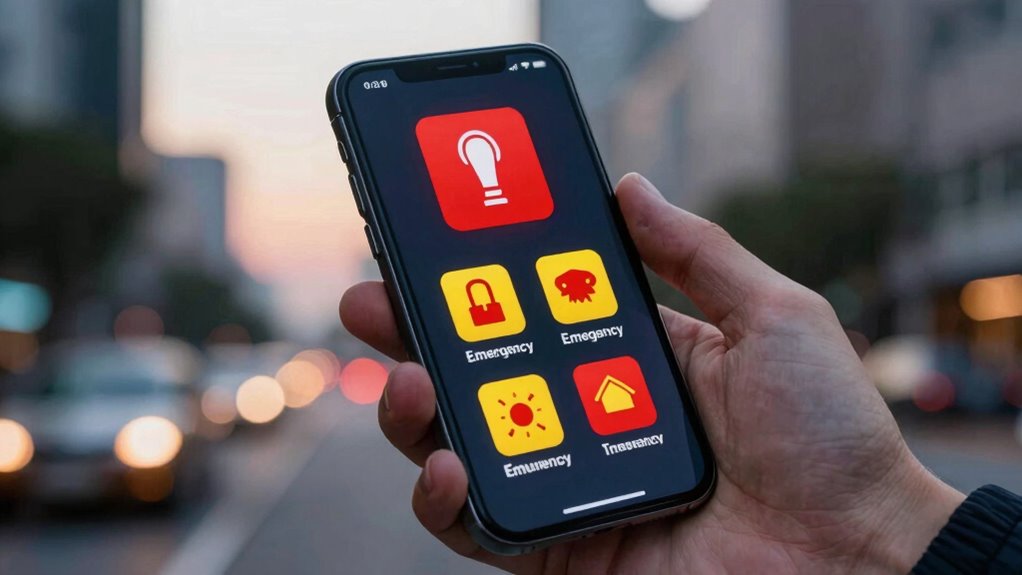

Many people overlook key emergency alert settings on their phones, which can leave them unprotected during urgent events. On Android, you need to enable alerts in the Settings app under “Safety and emergency” and “Wireless emergency alerts.” On iPhone, go to Notifications, then “Government Alerts.” Make sure your alerts are turned on and customized for critical messages. Keep device software updated and test your alerts regularly—if you want to discover simple ways to stay safer, there’s more to learn.
Key Takeaways
- Many users forget to enable emergency alert settings in their device’s notifications or safety menus.
- Default device configurations often do not include all alert types, risking missed critical messages.
- Turning on regional alerts like Local Awareness or Amber Alerts requires manual activation in settings.
- Regularly checking and updating alert preferences ensures you receive timely emergency notifications.
- Troubleshooting alert issues often involves verifying toggle settings, network connection, and software updates.

Seculife Smartwatch: Medical Alert Bracelet with GPS Tracker, Fall Detection Smart Watch, 2 Way Calling, SOS Button, Medical Watch, Emergency Device for Seniors, Life Alert System, Elderly Monitoring
🆘 𝐅𝐚𝐥𝐥 𝐃𝐞𝐭𝐞𝐜𝐭𝐢𝐨𝐧, 𝐒𝐎𝐒 𝐯𝐨𝐢𝐜𝐞 𝐜𝐚𝐥𝐥𝐬 𝐟𝐨𝐫 𝐒𝐞𝐧𝐢𝐨𝐫𝐬: When the smartwatch detects a fall or the heart button…
As an affiliate, we earn on qualifying purchases.
As an affiliate, we earn on qualifying purchases.
How to Access Emergency Alerts on Android Devices
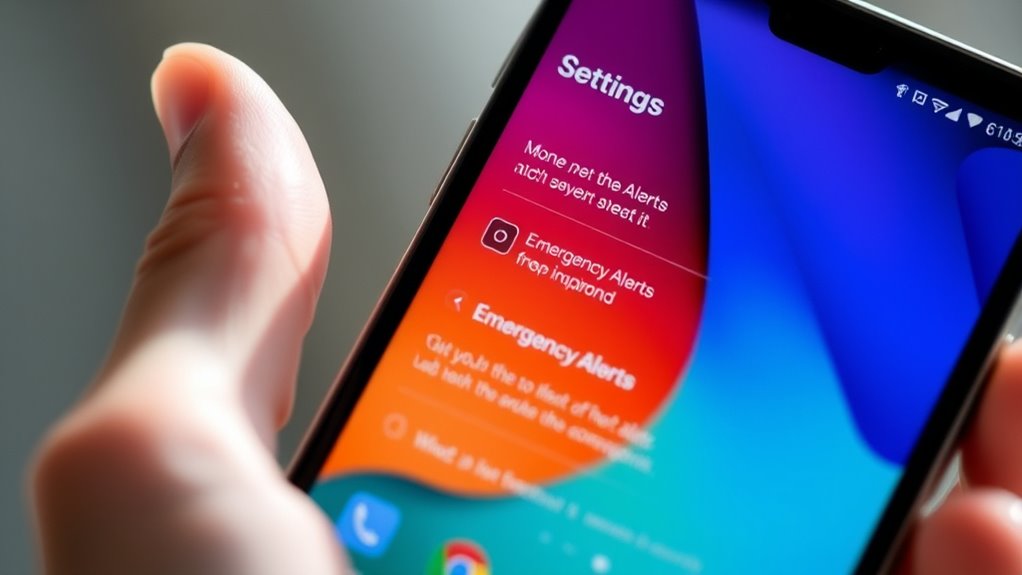
To access emergency alerts on Android devices, start by opening the Settings app, which you can find by tapping the gear icon on your home screen or app drawer. Once in Settings, scroll down and select “Safety and emergency,” then tap “Wireless emergency alerts.” If you don’t see these options, search for “wireless emergency alerts” in the Settings search bar. Use the toggles to enable or disable specific alert types, such as Amber alerts, Presidential alerts, or earthquake warnings. You can customize which alerts you want to receive, ensuring you stay informed during emergencies. Some devices may have different menu names, but the process generally involves browsing through Settings to the emergency alerts section. Adjust these settings to stay prepared and aware. Additionally, understanding the contrast ratio of your device can help you better interpret alert visuals and notifications effectively. Being familiar with your device’s notification settings can also ensure you don’t miss critical alerts when they occur. Checking your device’s software updates can help ensure you have the latest features and security improvements related to emergency notifications. Proper configuration of smart home alerts can further enhance your safety during emergencies by integrating device notifications with your overall home security system.
iPhone government alerts notifications
As an affiliate, we earn on qualifying purchases.
As an affiliate, we earn on qualifying purchases.
Managing Government Alerts on Iphones
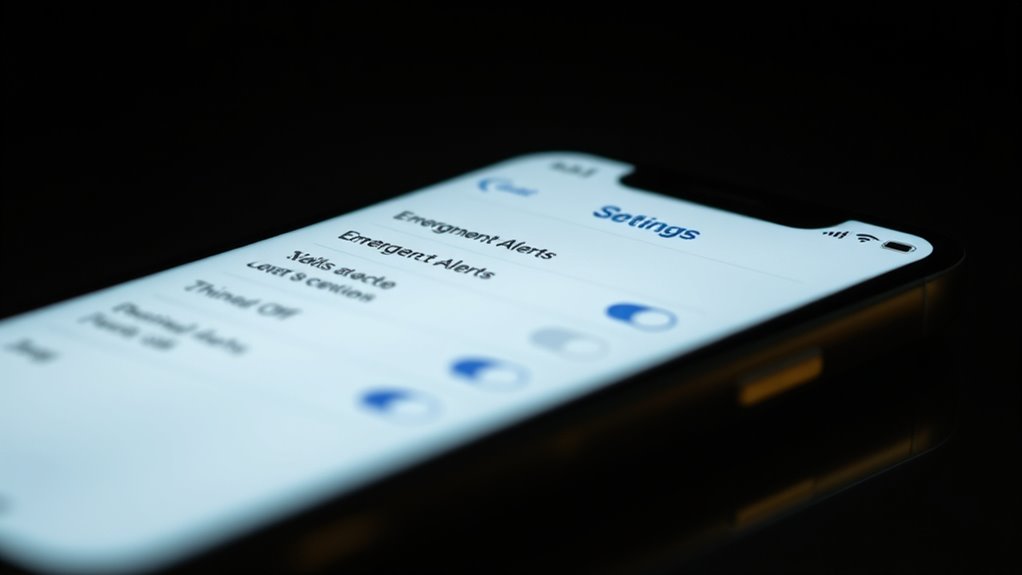
Managing government alerts on your iPhone is straightforward through the Notifications settings. To do this, open the Settings app and tap Notifications. Scroll down to the bottom and select Government Alerts. Here, you can toggle emergency alerts on or off, including alerts for severe weather, local emergencies, and national warnings. You’ll also find an option to enable Local Awareness, which enhances your safety by providing nearby alerts based on your location. Most government alerts are enabled by default if your iPhone has a supported SIM or eSIM from a compatible carrier. Remember, in some regions, these alerts cannot be disabled. Adjust these settings to stay informed about critical situations without unnecessary interruptions. Government alert systems are designed to keep you informed during emergencies, ensuring you receive timely information when it matters most. Additionally, understanding how public safety communications operate can help you better interpret the alerts you receive and respond appropriately, especially since these systems are built to deliver timely emergency information efficiently.

Lively Mobile2 – Medical Alert Device – 24/7 Emergency Help – Waterproof – with Optional Fall Detection – Lanyard Included – for Greater Independence
Fast help in emergencies, 24/7: With the fastest call response time, in emergencies big or small, one touch…
As an affiliate, we earn on qualifying purchases.
As an affiliate, we earn on qualifying purchases.
Customizing Alert Types and Notifications Settings
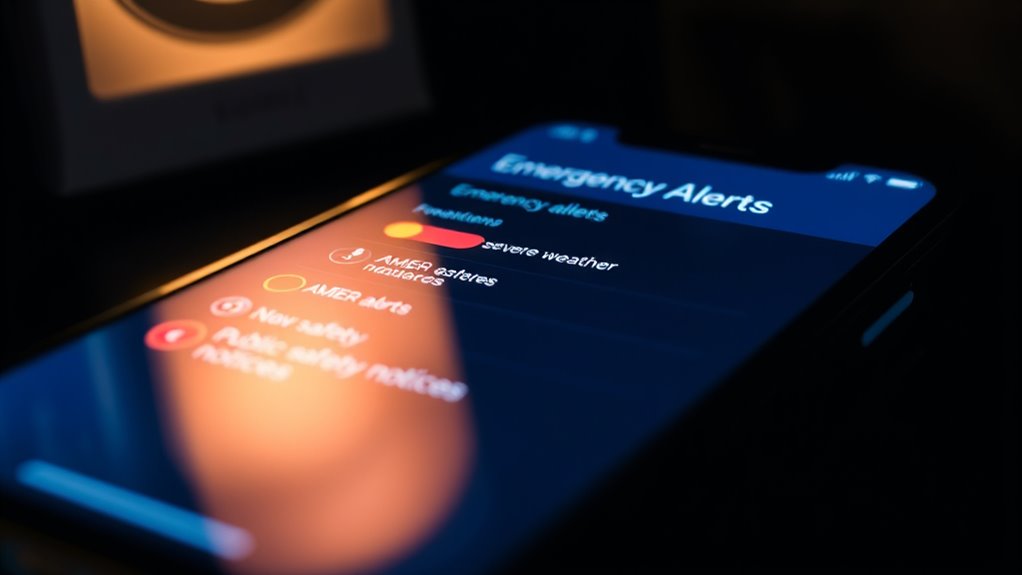
You can customize your emergency alert experience by selecting specific alert types and adjusting notification settings to suit your preferences. On Android, open Settings, then go to Safety and emergency > Wireless emergency alerts, and toggle the alert types you want, like Amber or Presidential alerts. You can also search for “wireless emergency alerts” if options aren’t visible. On iPhone, go to Settings > Notifications > Government Alerts, and toggle options such as Emergency Alerts or Local Awareness. These settings let you control which alerts you receive and how they notify you. Adjusting these preferences guarantees you only get critical messages and reduces unnecessary interruptions. Taking a moment to review and tailor your alert settings can help prevent Rhythm Failure and ensure you stay informed during emergencies. Being aware of electric bike capabilities and warning signs can also help you respond effectively in various situations. Properly configuring your device’s alert settings is an important aspect of software quality assurance, ensuring reliable and timely notifications during critical events. Regularly reviewing your settings can also help accommodate personal safety preferences and keep you better prepared for unforeseen circumstances. Additionally, understanding the role of vetted wave and wind information can improve your overall preparedness during weather-related emergencies.

WiFi Door Alarm System, Wireless DIY Smart Home Security System, with Phone APP Alert, 8 Pieces-Kit (Alarm Siren, Door Window Sensor, Remote), Compatible with Alexa, for House, Apartment by tolviviov
✅ALPHA WIRELESS SECURITY SYSTEM – A smart way to protect your house with tolviviov Smart Home Security System….
As an affiliate, we earn on qualifying purchases.
As an affiliate, we earn on qualifying purchases.
Tips for Ensuring You Receive Critical Emergency Messages
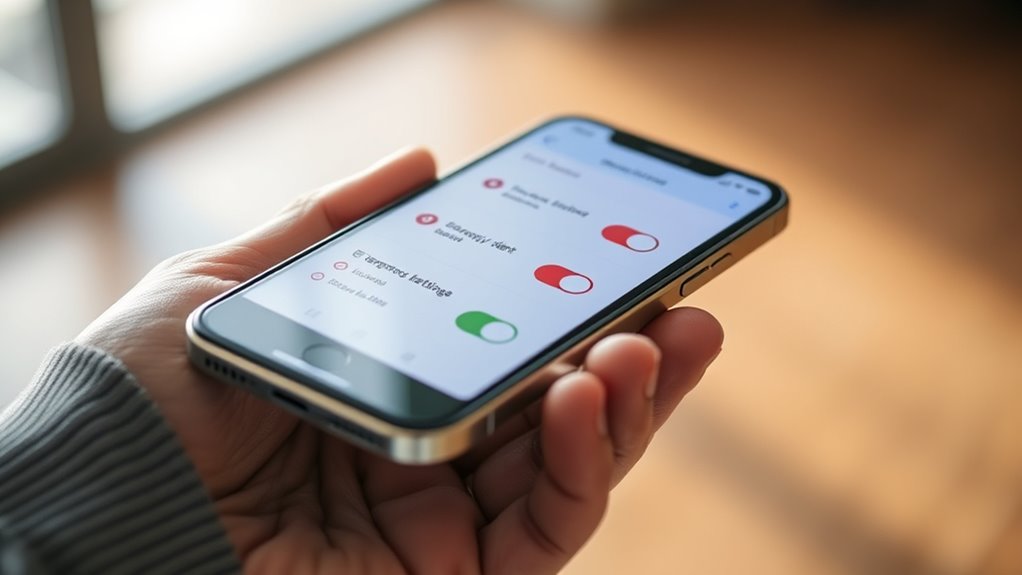
Ensuring critical emergency messages reach your device requires verifying that your alert settings are properly enabled and functioning. First, check that alerts are turned on in your device’s settings. For Android, go to Safety and emergency > Wireless emergency alerts, and confirm all relevant toggles are active. For iPhone, visit Settings > Notifications > Government Alerts, and ensure alerts are enabled. Additionally, keep your device software up to date to avoid compatibility issues. Regularly test your alert system if available. Here’s a quick overview:
| Device | Settings Location | Tips |
|---|---|---|
| Android | Safety & emergency > Wireless alerts | Enable all relevant alert types |
| iPhone | Settings > Notifications > Government Alerts | Turn on alerts, update iOS regularly |
| Both Devices | Keep software updated | Test alerts periodically |
| General | Ensure silent mode/disruptions don’t block alerts | Disable Do Not Disturb during emergencies |
A critical step in alert setup is to familiarize yourself with how to manually test alert systems, ensuring they are functioning correctly. Being aware of emergency communication protocols can also help you respond quickly during crises. For example, understanding how alert delivery methods work can make a difference in your preparedness. Additionally, understanding credit card security measures can help protect your device from cyber threats that might interfere with alert reception. Regularly reviewing alert system settings can further ensure you are prepared for various situations.
Common Issues and How to Troubleshoot Alert Settings

Despite having alert settings enabled, users often encounter issues where emergency notifications don’t appear as expected. First, check if alerts are turned on for your device. On Android, go to Settings > Safety and emergency > Wireless emergency alerts, and ensure all toggles are active. For iPhones, visit Settings > Notifications > Government Alerts, and confirm alerts are enabled. Sometimes, alerts are silenced due to Do Not Disturb mode or volume settings. Make sure your volume is up and DND is off during emergencies. Network issues can also block alerts—ensure your phone has a stable connection. Properly configuring emergency alert settings can significantly improve your chances of receiving timely notifications. Additionally, verifying cellular network permissions ensures your device is authorized to receive these alerts. Updating your device’s software can also resolve potential bugs that prevent alerts from functioning correctly. Being aware of alert transmission methods can help you understand how alerts are delivered and troubleshoot accordingly. Troubleshooting these common issues helps ensure you receive critical notifications when it matters most. Incorporating regular device updates can further enhance alert functionality and security.
Frequently Asked Questions
Can I Receive Emergency Alerts When My Phone Is in Silent Mode?
Yes, you can receive emergency alerts even when your phone is in silent mode. On both Android and iPhone, emergency alerts are designed to override silent settings to guarantee you get critical information. Make sure alerts are enabled in your device settings, and toggle on options like Government Alerts. This way, you’ll stay informed about emergencies without the alerts being muted by your phone’s silent or Do Not Disturb mode.
Do Emergency Alerts Drain My Phone’s Battery Significantly?
Think of emergency alerts as sirens in a storm—they’re vital, but they won’t sink your battery ship. These alerts use minimal power because they rely on push notifications, not constant background activity. While they do briefly activate your speaker or vibration, the overall drain is negligible. So, you can keep alerts on without fearing they’ll drain your battery faster, ensuring you’re always informed when it truly matters.
Are Emergency Alerts Available Internationally or Only in Specific Countries?
Emergency alerts are primarily available in supported countries like the U.S., Canada, and some others. You won’t get alerts if you’re in regions without compatible systems or if your carrier doesn’t support them. To check availability, go to your phone’s emergency alert settings. If you’re traveling, verify your device and carrier support alerts in that country. Keep in mind, availability varies depending on location and network infrastructure.
How Can I Verify if I Am Receiving All Types of Emergency Alerts?
To verify if you’re receiving all emergency alert types, check your phone’s alert settings. On Android, go to Settings > Safety and emergency > Wireless emergency alerts, and make sure all toggles are on. On iPhone, open Settings > Notifications > Government Alerts, and confirm all options are enabled. You can also test alerts if available. If some alerts aren’t coming through, contact your carrier or update your device software.
Can I Customize the Alert Sound for Emergency Notifications?
They say, “You get what you pay for,” but with emergency alerts, you get what you customize. On your iPhone, you can’t change the alert sound for government alerts, but you can for other notifications. On Android, you can often set custom sounds through the notification settings for specific alert types. Explore your device’s sound or notification settings, and you’ll find options to personalize alert tones to suit your preferences.
Conclusion
By exploring and customizing your emergency alert settings, you hold the power to stay informed when it matters most. Don’t let silence be your default; instead, turn on those critical notifications like a lighthouse guiding you through the storm. Remember, in the chaos of an emergency, awareness is your anchor. Take a few moments now to make sure your alerts are active—because being prepared isn’t just smart, it’s essential for weathering life’s unexpected storms.