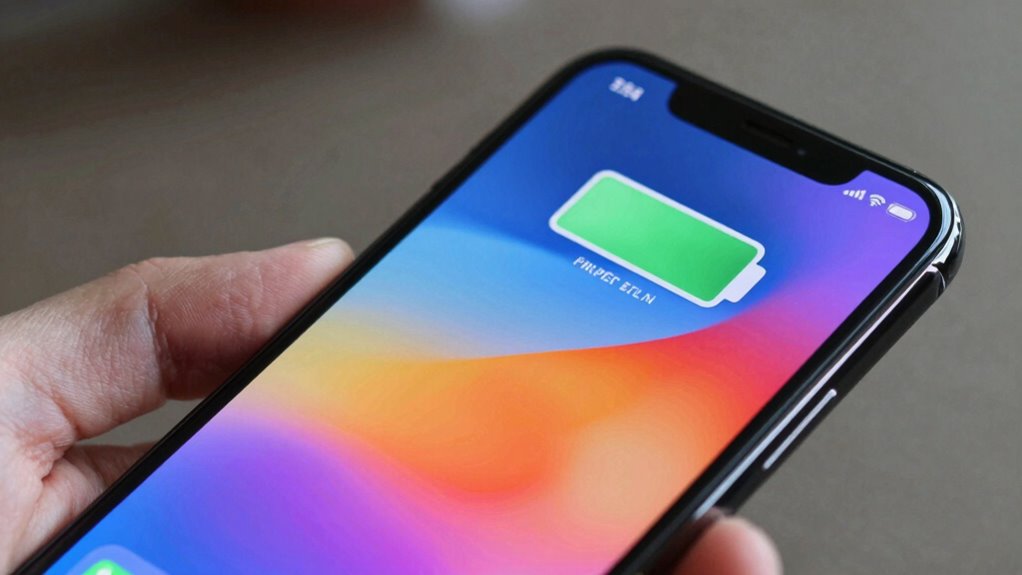

Your battery percentage can drop quickly if you had a sudden spike in app activity, enabled high screen brightness, or if environmental factors like extreme temperatures are at play. Background apps running without you realizing can also drain power fast. Usually, this isn’t a problem if it’s temporary or due to your device aging. Keep exploring to learn how to spot and fix these issues for longer battery life.

Get backup power and energy gear delivered free with Prime
- Fast, free delivery on millions of items
- Prime Video, Amazon Music and more included
- Member-only deals all year
Key Takeaways
- Background app activity and high screen brightness can cause rapid battery percentage drops during use.
- Environmental factors like cold weather slow chemical reactions, leading to quick percentage decreases even if usage is normal.
- Software updates or poorly optimized apps may increase background processes, accelerating battery drain unexpectedly.
- Normal battery aging reduces capacity, making the percentage drop faster even with consistent device use.
- Short-term spikes in battery drain are typical during intensive tasks or high brightness, but persistent rapid drops indicate issues.
As an affiliate, we earn on qualifying purchases.
Sudden Usage Spikes and Background Activity
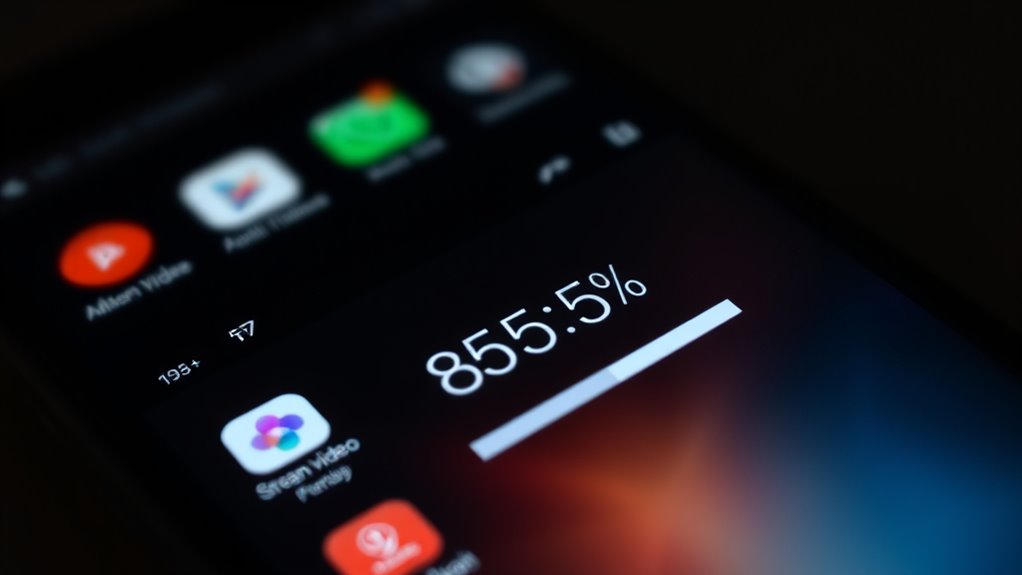
When your battery percentage drops quickly, it’s often because of sudden usage spikes or background activity. Apps running in the background can drain your battery without you noticing, especially if they perform tasks like updating content or syncing data. Usage pattern changes, such as opening multiple apps or streaming videos, can also cause rapid battery loss. Sometimes, a single app may use more power unexpectedly, leading to spikes in consumption. To identify these issues, check your battery usage in settings to see which apps are active. Managing background app activity—by closing unnecessary apps or restricting background refresh—can help stabilize your battery life. Additionally, high refresh rates on your device’s display can contribute to faster battery drain, especially during intensive tasks. Being aware of how background activity and Usage pattern changes impact power consumption helps you prevent unexpected drops. Regularly monitoring your battery usage can also alert you to apps or processes that consume an unusually high amount of power. Furthermore, smart home devices, such as AI-enabled cameras or thermostats, can sometimes increase device activity and impact battery life if integrated with your phone or other gadgets. In some cases, background processes related to European cloud services may also contribute to battery drain if your device syncs with cloud storage frequently.
auto brightness screen protector
As an affiliate, we earn on qualifying purchases.
As an affiliate, we earn on qualifying purchases.
Display Brightness and Screen Time
Your screen’s brightness level plays a big role in how quickly your battery drains, especially if you keep it high for extended periods. When you use your device for a long time, the screen consumes most of the power, making auto-brightness adjustments a helpful feature to save energy. Lowering brightness or enabling auto-brightness can make a noticeable difference in extending your battery life.
Brightness Impact on Battery
Adjusting your screen brightness can considerably impact your device’s battery life, especially if you tend to keep your screen on for extended periods. Bright screens consume more power, so lowering brightness helps conserve energy. Proper screen calibration ensures your display isn’t brighter than necessary, which can further improve power saving. Some devices offer adaptive brightness features that automatically adjust based on ambient light, optimizing battery use without sacrificing visibility. Keep in mind that constantly using maximum brightness accelerates battery drain, so adjusting it to comfortable, lower levels can extend your device’s lifespan between charges. Additionally, display brightness is a crucial factor in modern kitchen technology, as it directly influences how long your device can operate without recharging. Managing power consumption through brightness settings is essential for ensuring your device remains reliable during long commutes or extended use. By managing your screen brightness effectively, you reduce unnecessary power consumption, making your battery last longer and improving overall device performance. Effective brightness management can significantly extend the time between charges, especially in situations where access to charging sources is limited. Understanding how visual cues can influence your perception of display brightness can help you optimize settings for both comfort and efficiency. Moreover, being aware of battery health can guide you in making adjustments that prolong your device’s overall lifespan.
Extended Screen Usage
Extended screen usage markedly accelerates battery drain, especially if the display remains on at high brightness levels or for long periods. When you keep your screen active longer than needed, your battery works harder, draining faster. Adjusting your screen timeout helps conserve power by turning off the display sooner. Also, app refresh rates impact battery life; higher rates consume more energy during constant updates. Managing screen brightness effectively can significantly extend your device’s battery life. Additionally, display settings, such as adaptive brightness, can automatically optimize brightness levels based on ambient light, further conserving power. Being aware of power management features on your device can help you fine-tune settings for maximum efficiency. Recognizing the importance of battery health can also guide you in maintaining optimal performance over time. Understanding how background activity affects energy consumption helps you identify which apps may be draining your battery unexpectedly.
Auto-Brightness Adjustments
Auto-brightness automatically adjusts your screen’s brightness based on ambient light, helping to conserve battery life. This feature uses adaptive brightness and auto adjustment features to optimize screen visibility without unnecessary energy use. When you’re outdoors, the screen brightens; indoors, it dims to save power. Sometimes, auto-adjustment can cause your screen to flicker or stay brighter than needed, which may drain your battery faster. To improve efficiency, consider disabling auto-brightness when you don’t need it. You’ll notice a longer battery life and less strain on your device. Remember, adaptive brightness is designed for convenience, but it’s worth adjusting manually if you want tighter control over your screen’s power consumption. Proper management of auto-brightness can make a significant difference in your device’s battery longevity. Additionally, understanding how display brightness settings impact energy use can help you optimize your device’s overall battery performance. Being aware of potential battery drain caused by auto-brightness adjustments can help you make more informed decisions, especially when monitoring your device’s power consumption during different activities. For example, some devices have smart features that further adjust brightness based on usage patterns, which may also influence battery life. Regularly reviewing your device settings can help identify and reduce unnecessary battery drain caused by auto-brightness.
As an affiliate, we earn on qualifying purchases.
Software Updates and Power Management Settings
Software updates and power management settings play a crucial role in how quickly your battery drains. Sometimes, updates can introduce new features that consume more power or change how your device manages energy, leading to faster battery drops. Poorly optimized updates might cause background processes to run excessively, affecting battery life. Additionally, battery calibration becomes important after updates, ensuring your device accurately reports charge levels. A battery calibration process helps reset the device’s understanding of the battery’s capacity, which can improve reporting accuracy. Without proper calibration, your battery percentage might drop suddenly or seem inaccurate. Proper calibration improves battery accuracy and helps maintain reliable readings. Power management settings, like enabling low-power modes or adjusting app refresh rates, can help conserve energy. Be aware that hardware degradation over time can impact how these settings perform, but frequent rapid drops often relate more to software issues than physical battery health. Regular updates and correct settings can help optimize your battery’s lifespan and performance. Proper calibration is essential for maintaining accurate battery readings, especially after software changes, and understanding energy consumption patterns can also assist in managing battery life effectively.
As an affiliate, we earn on qualifying purchases.
Battery Age and Capacity Loss
Over time, your battery’s capacity naturally diminishes, reducing how long your device can run on a full charge. As the battery ages, it can’t hold as much power, leading to faster percentage drops. Poor charging habits, like frequent full discharges or overcharging, speed up capacity loss. To maintain accuracy, consider regular battery calibration, which helps your device better estimate remaining battery life. You’ll notice that a worn battery causes quicker drops in percentage, even if the actual runtime hasn’t changed. Being aware of your battery’s age and health can help you manage expectations and prolong its lifespan. Proper charging practices are essential for minimizing capacity loss and extending battery life. Additionally, using battery health monitoring tools can provide insights into your battery’s current condition and guide your maintenance habits. Maintaining optimal charge cycles can also help slow down capacity degradation over time. Incorporating energetic alignment techniques, such as visualizations or positive affirmations, can further support your device’s optimal performance and longevity.
Temperature and Environmental Factors
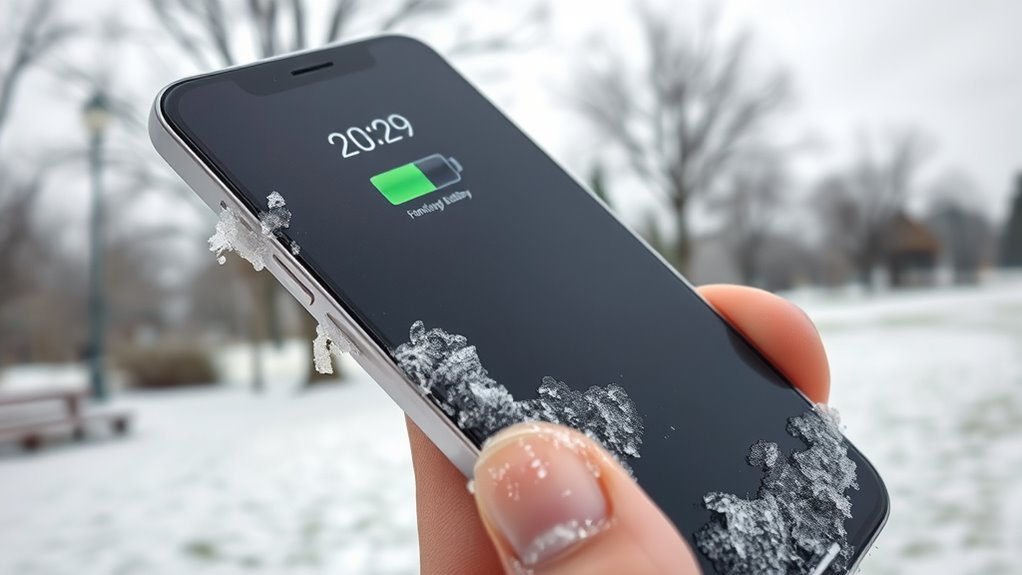
Extreme temperatures can cause your battery to drain quickly; cold weather often leads to faster power loss, while hot temperatures can speed up degradation. When it’s humid, moisture can affect the battery’s performance and lifespan. Being aware of these environmental factors helps you protect your device’s battery life. Additionally, exposure to essential oils or other chemicals can sometimes impact battery components and performance over time.
Cold Weather Drain
Cold weather substantially accelerates battery drain because low temperatures reduce the chemical reactions inside the battery, making it less efficient. When temperatures drop, your device’s battery can seem to lose power faster than usual. To counter this, consider performing a battery calibration so your device more accurately reflects remaining charge. Additionally, during cold conditions, power optimization becomes essential—dim your screen, disable unused features, and avoid intensive tasks. Keep your device warm when possible, such as in your pocket, to slow the drain. Be mindful that colder environments naturally cause faster battery percentage drops, which aren’t always indicative of real capacity loss. By understanding this, you can better manage your device’s performance and extend its usability in cold weather.
Hot Temperatures Accelerate
High temperatures can cause your device’s battery to drain faster just like cold weather, but for different reasons. When it’s hot, your battery’s chemical reactions speed up, leading to quicker energy loss. This accelerated drain can make your battery percentage drop rapidly, even if you’re not actively using your device. To counteract this, it’s helpful to perform battery calibration, ensuring your device accurately reports its charge level. Additionally, enabling power-saving mode can reduce unnecessary background activity and heat generation, helping your battery last longer in high temperatures. Keep your device out of direct sunlight and avoid exposing it to extreme heat sources. Managing environmental heat effectively can prevent unnecessary battery drain and prolong your device’s overall health.
Humidity Affects Battery
Humidity can markedly impact your device’s battery life by affecting its internal components. Excess moisture exposure can lead to humidity effects that accelerate battery degradation over time. When humidity levels are high, moisture damage can occur inside your device, causing corrosion of circuits and weakening battery connections. This deterioration can lead to faster battery drain or unexpected shutdowns. To minimize these risks, avoid exposing your device to humid environments for extended periods.
- Store your device in a dry, ventilated area
- Use silica gel packs or dehumidifiers in storage spaces
- Regularly inspect for signs of moisture damage and corrosion
Keeping humidity levels low helps preserve battery health and prolongs its lifespan, ensuring your device performs reliably.
Apps and Services Running in the Background
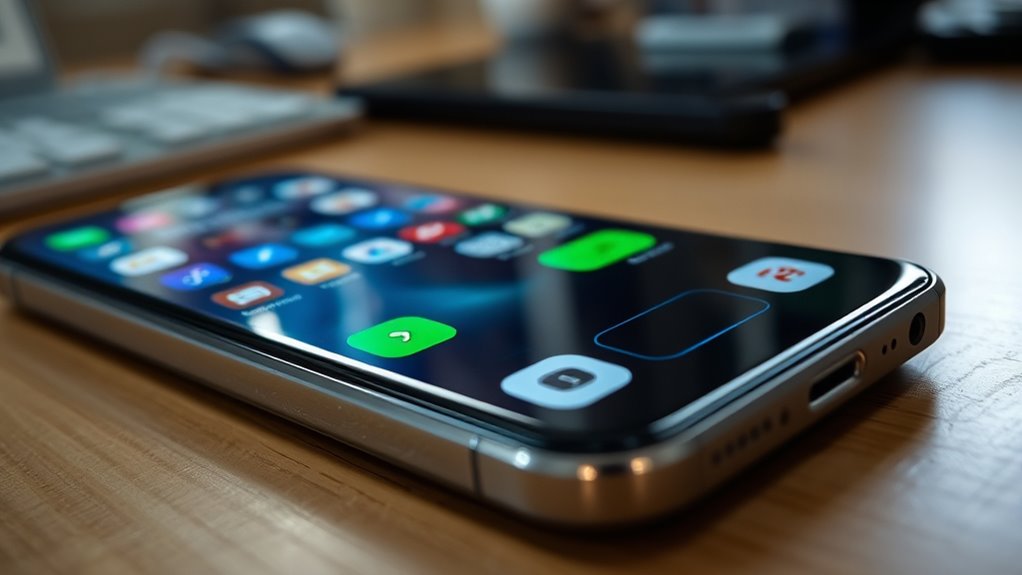
Apps and services running in the background can substantially drain your battery without you realizing it. Many apps use app permissions to access location, camera, or data, even when you’re not actively using them. Background refresh allows apps to update content automatically, but it can also consume power. To save battery, review which apps are allowed to refresh in the background.
| Background Activity | Impact on Battery |
|---|---|
| App permissions | Can enable apps to run unnecessarily |
| Background refresh | Increases background data usage |
| Location services | Uses significant power if always on |
| Push notifications | Usually minimal, but cumulative effect |
Turning off unnecessary app permissions and disabling background refresh for seldom-used apps can help extend your battery life.
Frequently Asked Questions
How Can I Tell if My Battery Is Genuinely Failing?
You can tell your battery is failing if it shows inconsistent readings, like sudden drops or rapid losses in charge. Try calibrating your battery by fully charging and discharging it to reset the system. Watch for voltage fluctuations, which indicate declining health. If these issues persist, your battery likely needs replacement. Regular calibration helps maintain accurate readings and can extend its lifespan, preventing unexpected failures.
Do Power Banks or External Chargers Affect Battery Health?
Using a power bank or external charger is like adding a fresh stream to a river; it doesn’t harm your device directly but can impact battery health over time. Frequent use may affect battery calibration and cause faster wear. To minimize this, avoid overcharging and use quality power banks. Proper calibration and cautious charging habits help extend your battery’s lifespan, ensuring your device stays reliable longer.
Can Disabling Certain Apps Extend Battery Life?
Disabling certain apps can extend your battery life, especially background apps that run without your knowledge. When you turn off apps you don’t use, you reduce their background activity, saving energy. Also, check app permissions—limiting permissions like location or notifications can prevent unnecessary battery drain. Regularly closing unused apps and adjusting settings helps your device conserve power and keeps your battery lasting longer throughout the day.
Does Ios or Android Handle Battery Health Differently?
Think of your phone’s battery health like a garden needing regular care. iOS and Android handle this differently; iOS often emphasizes battery calibration and provides firmware updates to optimize performance, while Android varies by device but also benefits from updates. Both systems aim to extend battery life, but how they do it can differ. Staying updated and calibrating your battery helps maintain its health, much like tending a thriving garden.
How Does Cold Weather Impact My Device’s Battery Percentage?
Cold weather impacts your device’s battery performance by causing the chemical reactions inside the battery to slow down. This leads to a temporary decrease in battery percentage and shorter usage times. You might notice your phone drains faster or the battery seems to die unexpectedly in cold conditions. Once warmed up, your battery performance usually returns to normal. To minimize this, keep your device in a warmer environment whenever possible.
Conclusion
Understanding why your battery percentage drops quickly helps you take control. Recognize when sudden spikes happen, adjust display and app settings, and consider environmental factors. Keep an eye on background activity, software updates, and battery health to stay informed. By managing usage, optimizing settings, and being aware of external influences, you extend your battery life and prevent surprises. Stay proactive, stay aware, and keep your device running smoothly—because a well-maintained battery is a well-powered device.
Halloween Picks
halloween
As an affiliate, we earn on qualifying purchases.