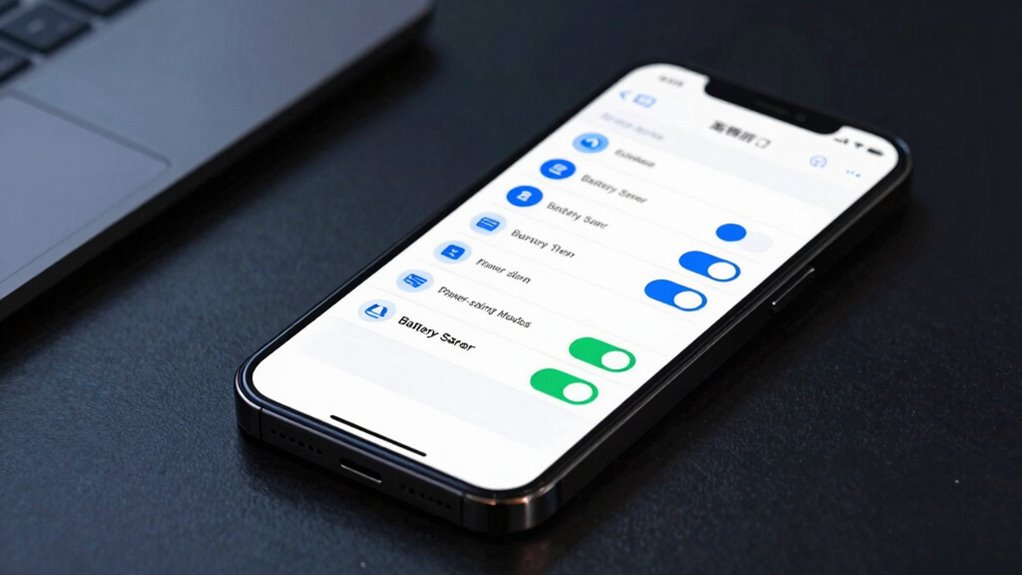

To maximize your nighttime battery life, enable battery saver modes, schedule low-power settings, and turn off unnecessary connectivity like Wi-Fi and location services. Reduce screen brightness and set shorter timeout durations. Use adaptive or dark mode features, and restrict background activity and notifications for non-essential apps. Also, follow safe charging practices by unplugging at 80–90% and keeping your device cool. Keep going for expert tips that help extend your battery health even further.

Get backup power and energy gear delivered free — and shop member deals
- Fast, free delivery on millions of items
- Access to Prime Big Deal Days deals on October 6–7
- Prime Video, Amazon Music and more included
Key Takeaways
- Enable low-power mode and schedule it during sleep hours to reduce background activity and conserve battery.
- Turn off Wi-Fi, Bluetooth, and location services before bed to prevent unnecessary power drain.
- Set a shorter screen timeout and lower brightness or enable auto-brightness to save energy overnight.
- Use Dark Mode and disable Always-On Display to minimize display power consumption at night.
- Schedule Do Not Disturb and restrict background app activity to prevent wake-ups and unnecessary battery use.
As an affiliate, we earn on qualifying purchases.
Optimize Your Charging Routine for Battery Longevity
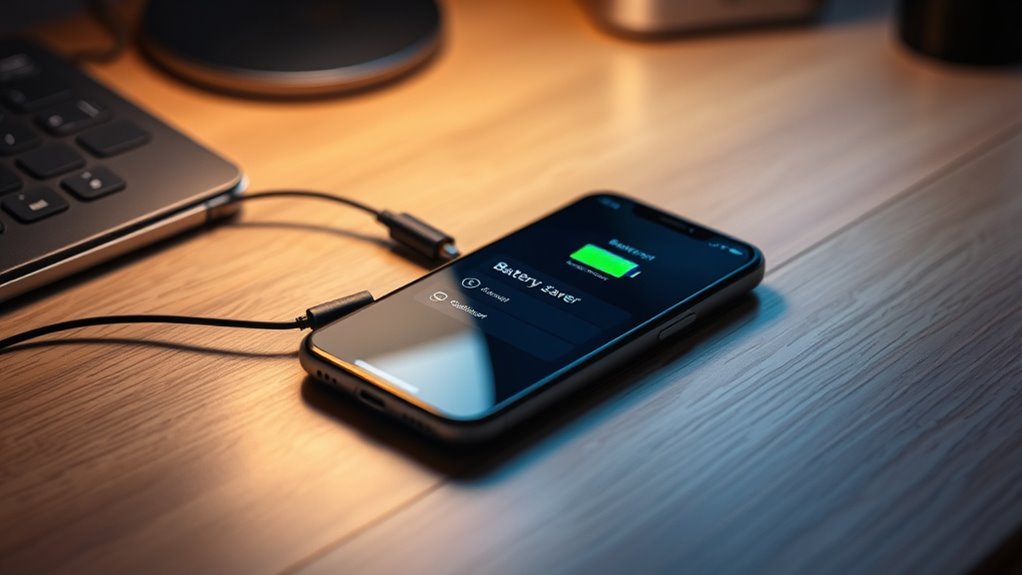
To extend your battery’s lifespan, it’s essential to adopt a smart charging routine. Start by enabling scheduled charging to stop or hold at around 80–90%, which slows down chemical aging caused by staying at 100% for too long. Avoid leaving your device plugged in overnight if your phone lacks this feature; unplug it once it reaches your target charge to reduce trickle charging stress. Use OEM-provided protection features, like optimized or adaptive charging, which learn your sleep patterns and limit full-charge exposure. Prefer slow or standard overnight charging instead of fast charging, as high-rate charging generates heat that accelerates capacity loss. Additionally, keep your phone cool by removing thick cases and placing it on hard surfaces, as elevated temperatures during charging can worsen battery degradation. Regularly monitoring your device’s battery health can also help you identify early signs of capacity decline and take preventive measures. Being mindful of battery temperature during charging can further help preserve overall battery longevity, especially since thermal management plays a critical role in battery preservation. Ensuring proper ventilation and avoiding charging in hot environments can also significantly contribute to maintaining optimal battery performance. Incorporating proper charging habits can make a notable difference in extending your device’s overall lifespan.
As an affiliate, we earn on qualifying purchases.
Schedule Nighttime Power Modes and Do Not Disturb
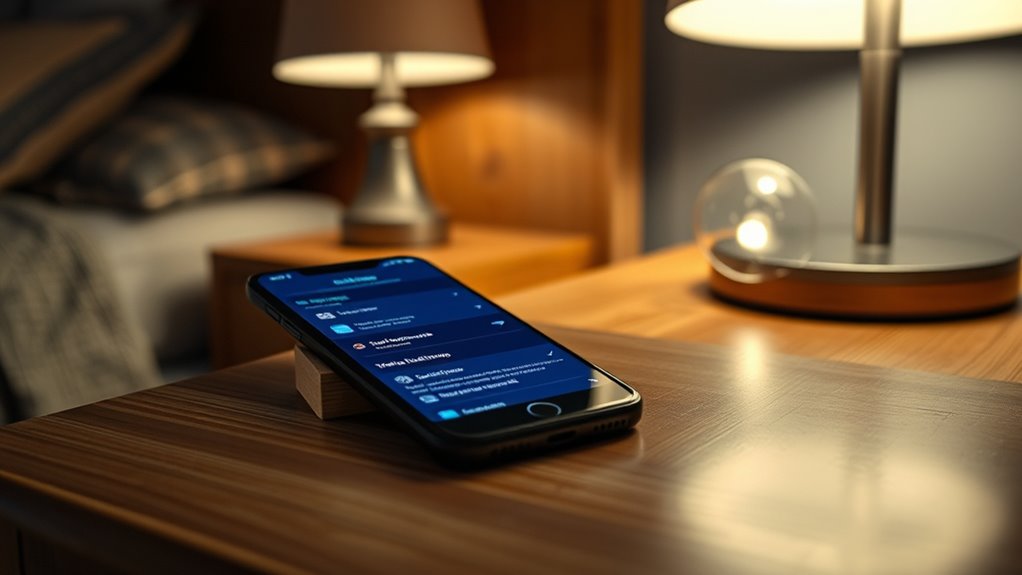
Scheduling nighttime power modes and Do Not Disturb (DND) settings can considerably extend your phone’s battery life overnight. By automating these features, you prevent unnecessary background activity, notifications, and screen-on time. Use battery saver mode to limit CPU and background processes, while DND silences alerts and stops wake-up events. Combining these with bedtime routines that disable Wi-Fi, lower brightness, and activate dark mode—all in one schedule—maximizes energy efficiency. To visualize, here’s a quick overview:
| Setting | Action | Benefit |
|---|---|---|
| Power Mode | Schedule low-power mode | Reduces energy drain |
| Do Not Disturb | Automate during sleep hours | Prevents wake-ups |
| Bedtime Routine | Disable Wi-Fi, dark mode, brightness | Minimizes background activity |
Implementing automatic scheduling can further optimize your device’s power management and ensure it conserves energy throughout the night. Utilizing power management features helps maintain battery health over time and reduces the need for frequent charging. Additionally, adjusting your device’s battery settings can enhance longevity and performance. For example, enabling adaptive brightness can automatically adjust screen brightness based on ambient light, saving additional power. Incorporating energy-saving tips into your nightly routine can provide even more efficient battery usage and prolong your device’s lifespan. This automation simplifies your night, preserving battery longer.
nighttime phone charging station
As an affiliate, we earn on qualifying purchases.
As an affiliate, we earn on qualifying purchases.
Adjust Display Brightness and Screen Timeout Settings
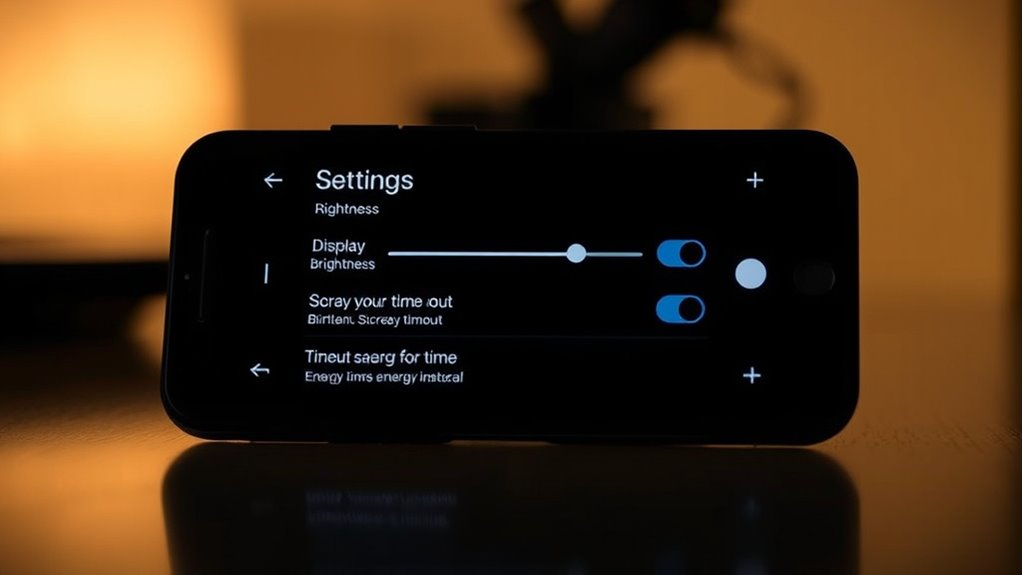
Adjusting your display brightness and screen timeout settings plays a significant role in conserving battery during night hours. Lowering your screen brightness reduces power consumption, especially on OLED screens where dark pixels save energy. Enabling auto-brightness allows your device to adapt brightness based on ambient light, preventing unnecessary illumination. Setting a shorter screen timeout ensures your display turns off quickly when inactive, preventing accidental or prolonged screen-on periods. Turning off Always-On Display or scheduling it off at night prevents continuous pixel illumination, saving power. Additionally, reducing color intensity or switching to grayscale can provide minor but meaningful savings when vivid colors aren’t necessary. These adjustments collectively reduce the energy your screen uses, helping your phone last longer through the night without needing a recharge. Understanding display technology can help you make more informed choices about screen settings and power efficiency. Moreover, battery management techniques can further enhance your device’s longevity during extended periods of inactivity. Implementing these adjustments not only saves energy but also minimizes light exposure, which can contribute to a healthier sleep environment.
As an affiliate, we earn on qualifying purchases.
Manage Connectivity and Background Data Access
To save battery overnight, consider turning off Wi-Fi when you don’t need it, as it consumes power searching for networks. Limiting background app activity prevents unnecessary data usage and reduces wake-ups that drain your battery. Also, disabling location services when not needed can stop constant GPS checks and extend your device’s charge. Implementing necessary cookies can also help manage essential site functions without impacting battery life. Additionally, adjusting battery optimization settings for individual apps can further conserve power during inactive hours. Monitoring background activity can identify apps that unnecessarily wake your device, helping you optimize power savings even further, especially since controlling cookie preferences enhances your overall device performance and privacy. Recognizing app permissions allows for better control over what apps can access when your device is idle, further extending battery life.
Disable Wi-Fi at Night
Disabling Wi-Fi at night can considerably reduce battery drain caused by idle network activity. When Wi-Fi remains on, your device frequently scans for available networks, consuming power even if you’re not actively using it. Turning off Wi-Fi during sleep hours minimizes these background scans, saving valuable battery life. If you don’t need internet access overnight, schedule your Wi-Fi to turn off automatically or do it manually before bed. This simple step prevents your device from wasting energy searching for networks or maintaining connections. Additionally, if you’re connected to Wi-Fi but not actively browsing, disabling it can further reduce unnecessary background activity. Keep in mind, re-enable Wi-Fi in the morning to restore connectivity and ensure updates and notifications come through efficiently. Efficient power management helps prolong your device’s battery life and ensures it’s ready when you need it. Properly managing your device’s network connections can also help maintain the health of your battery and device performance. To optimize your device’s longevity, consider implementing smart scheduling for Wi-Fi and other settings.
Limit Background App Activity
Ever wondered how background app activity drains your battery overnight? When apps run in the background, they constantly access connectivity and process data, consuming power. To stop this, restrict their activity during sleep hours. Managing background activity effectively helps preserve battery life and ensures your device is ready when you need it. Additionally, controlling app permissions can prevent unnecessary background processes from running without your knowledge. Understanding how power management works on your device can further optimize battery usage during idle periods.
Turn Off Location Services
Have you considered how location services drain your battery overnight? When location services stay on, your device constantly checks GPS signals and nearby Wi-Fi networks, which consumes power even when you’re asleep. Turning off location services reduces background activity and prevents unnecessary GPS checks, saving battery life. If you need certain apps, like navigation or weather, to access location only when in use, set them to “While Using” or disable location permissions entirely. This way, your phone won’t perform periodic GPS scans or send location data in the background. Disabling location services not only conserves battery but also enhances your privacy by limiting device tracking. Remember, turning off location features during night hours is a simple, effective step to extend your battery‘s lifespan and ensure your device stays charged longer.
Control Notifications and App Wake-Locks During Sleep
Controlling notifications and app wake-locks during sleep is essential for conserving battery life overnight. Unnecessary wake-ups drain power and reduce your device’s longevity. To optimize, consider these steps:
- Disable notifications from non-essential apps to prevent screen wakes and CPU activity.
- Review and restrict apps that frequently hold wake-locks, using system analytics or battery settings.
- Turn off or limit background app refresh and data access for apps that don’t need overnight updates.
- Schedule Do Not Disturb and auto-lock features to minimize wake events and keep the display off when not in use.
Use Hardware and Safety Measures for Overnight Charging
Using the right hardware and safety practices during overnight charging can considerably extend your battery’s lifespan. Always use manufacturer-recommended chargers and cables to guarantee proper voltage and current flow, reducing long-term stress. Avoid cheap, uncertified power banks, as inconsistent power delivery can damage your battery. Opt for chargers with built-in protection features like timed or optimized charging modes, especially if you must leave your device plugged in overnight. Remove thick cases if they cause heat buildup during charging, as elevated temperatures accelerate capacity loss. Keep your charging area well-ventilated and avoid placing your device under pillows or soft surfaces that trap heat. These practices help prevent overheating and voltage issues, safeguarding your battery’s health over time.
Enable Battery-Saving Features and Adaptive Settings
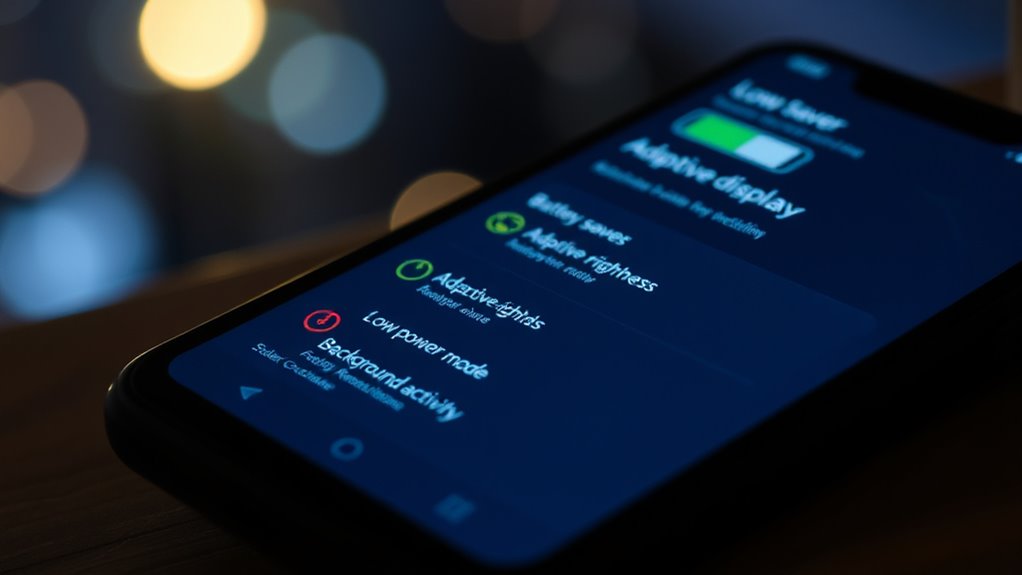
Turning on Low Power Mode helps you extend your battery life during the night by reducing background activity. Scheduling Night Mode automatically adjusts settings like brightness and notifications to save power without you having to remember. Enabling Adaptive Brightness guarantees your screen dims in dark environments, further conserving energy while keeping visibility comfortable.
Activate Low Power Mode
Have you considered activating Low Power Mode to extend your phone’s battery life? It’s an effective way to conserve energy during the night. When enabled, it automatically adjusts settings to reduce power drain. Here’s what you should do:
- Turn on Low Power Mode in your device’s settings before bed.
- Limit background activity, like app refreshes and automatic updates.
- Reduce or disable visual effects, such as animations and motion.
- Turn off non-essential features like Bluetooth, Wi-Fi, or location services if not needed overnight.
Schedule Night Mode
Scheduling Night Mode allows you to automatically activate battery-saving features and adaptive settings during your sleeping hours, ensuring your device conserves energy without manual intervention. By setting a schedule, you prevent unnecessary background activity and screen usage when you’re not actively using your phone. Enable features like system battery saver, Do Not Disturb, and dark mode to minimize power drain. This automation reduces screen brightness, silences notifications, and limits background processes, all while you sleep. Adjust your schedule to match your typical sleep hours, so these optimizations run seamlessly. With Night Mode scheduled, your device conserves battery, reduces heat buildup, and prolongs overall lifespan, all without you needing to remember to toggle settings manually.
Enable Adaptive Brightness
Enabling adaptive brightness helps optimize your screen’s energy consumption by automatically adjusting the display’s brightness based on ambient lighting conditions. This feature reduces power use during nighttime by dimming the screen in darker environments. To get the most out of this setting:
- Turn on auto-brightness in your device’s display settings.
- Keep your device’s light sensor unobstructed for accurate readings.
- Use adaptive brightness with dark mode to maximize savings.
- Regularly calibrate or reset brightness levels if you notice inconsistent adjustments.
Implement a Nighttime Routine to Maximize Battery Health
Creating a nighttime routine for your phone can considerably extend its battery lifespan by minimizing unnecessary power drain during sleep hours. Start by enabling scheduled charging and setting it to stop at around 80–90%, reducing time at full capacity that accelerates chemical aging. Activate battery saver or low-power mode to limit background activity and CPU usage overnight. Schedule Do Not Disturb and bedtime automations to silence notifications, disable Wi-Fi, Bluetooth, and location services, preventing wake-ups and unnecessary scans. Lower screen brightness or enable dark mode, and turn off Always-On Display to save power. Consider restricting background app activity and push notifications for nonessential apps. These steps work together to optimize your device’s power consumption, preserving battery health for the long term.
Frequently Asked Questions
How Can I Tell if My Battery Is Degrading Over Time?
You can tell if your battery is degrading over time by checking its capacity in your device settings or through battery health apps. Notice if your phone’s battery drains faster than usual or if it won’t hold a charge as long. Also, look for unexpected shutdowns or frequent charging cycles. If these signs appear, it’s a good indication your battery’s capacity and health are declining.
Are There Risks to Leaving My Phone Plugged in Overnight?
Leaving your phone plugged in overnight is like letting a pot boil over—you risk damage if you’re not careful. It can cause heat buildup, which accelerates battery wear, and trickle charging stresses the battery long-term. To protect your device, unplug once it hits around 80-90%, use chargers with safety features, and avoid heat traps. This way, you keep your battery healthy for longer and prevent unnecessary damage.
Which Apps Should I Disable to Save Battery at Night?
You should disable apps that run background services, like social media, messaging, and news apps, to save battery at night. Turn off or restrict location services, background app refresh, and push notifications for non-essential apps. Also, uninstall or force-stop apps known to hold wakelocks. These steps prevent unnecessary wake-ups and data activity, helping your phone conserve power while you sleep, ultimately extending your battery lifespan.
How Does Dark Mode Actually Reduce Battery Consumption?
Dark mode reduces battery consumption by limiting the brightness of your OLED or AMOLED screen pixels, which are lit individually. When you switch to dark mode, fewer pixels need illumination, cutting down power usage considerably. You’ll notice longer battery life, especially during night use. Keep in mind, this effect is most noticeable on devices with OLED displays, so enabling dark mode is a smart way to save power overnight.
What Are the Best Temperature Ranges for Safe Overnight Charging?
The best temperature range for safe overnight charging is between 20°C and 25°C (68°F to 77°F). Staying within this range helps prevent overheating that can damage your battery and reduce its lifespan. Keep your device cool by removing thick cases and avoiding warm environments. Avoid exposing your phone to direct sunlight or heat sources during charging, as elevated temperatures accelerate capacity loss and pose safety risks.
Conclusion
By taking these simple steps tonight, you’re not just saving battery—you’re revealing hidden potential. But what if there’s one setting you’re overlooking that could make all the difference? Stay tuned, because the true secret to lasting battery life might just surprise you. Don’t settle for quick charges and short-lived power—get ready to discover the game-changing tweak that keeps your phone running longer than ever before. The best is yet to come.
Fall Picks
fall essentials
As an affiliate, we earn on qualifying purchases.